A guide to each place in Mehtagent Lite
Lite has six places in the menu on the left: Home, Funding, Ship, File Previews, Call Notes and Setup. This page says what each one is for and what you'll see there. The pictures come from a demo install with made-up projects.
Home
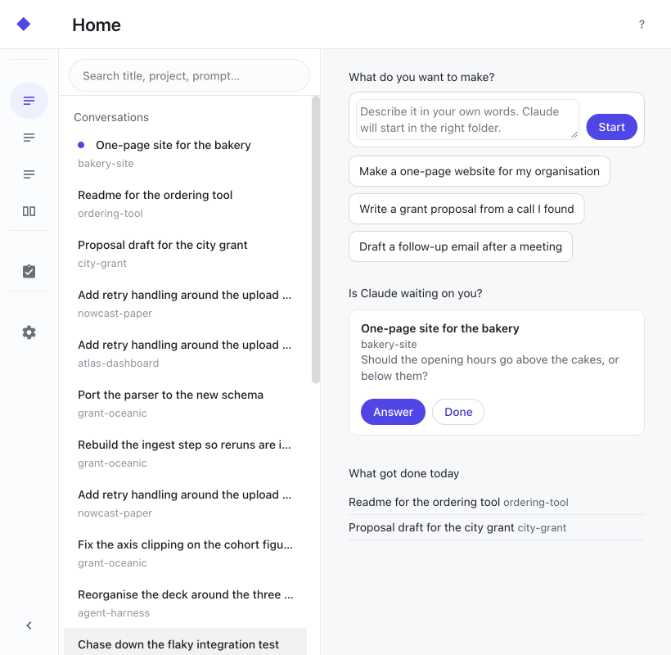
Home is where you ask for things and where Claude tells you it needs you.
- What do you want to make? Write it in your own words, or click one of the three suggestions to fill the box, then press Start. Lite suggests a folder and says why, starts Claude there, and opens the new conversation as soon as it appears, within about half a minute.
- Is your AI waiting on you? Each card is a conversation where Claude stopped to ask you something, with Answer to open it and Done to put it away.
- What got done today lists today's other conversations, including any Claude is still working on.
- Conversations, on the left, is every conversation on this Mac, newest first, with a dot on the ones waiting for you.
A conversation
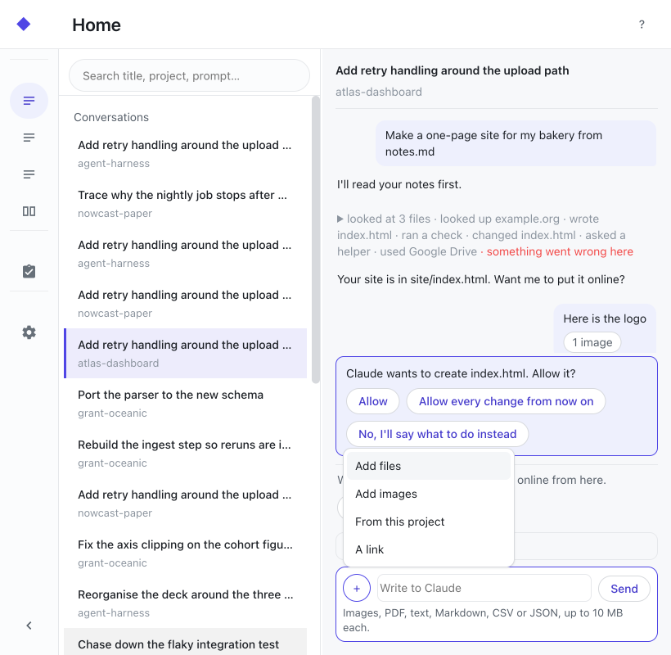
Your messages appear on the right and Claude's replies appear as plain text. Between them, one short line sums up each batch of work, such as "looked at 3 files · wrote index.html", and clicking it shows each step. Lite marks a failed step in red.
- Made and Used, beside the conversation, list what Claude made and what it looked at. In a narrow window they fold into Files, just above the box.
- The box at the bottom, marked "Write to Claude", is where you reply. Enter sends, and Shift+Enter starts a new line.
- + adds files or images from your Mac, a file from this project, or a link. You can also drop files anywhere on the conversation, or paste an image.
- When Claude needs your permission, or asks you a question with numbered choices, a card appears above the box with a button for each choice. Lite sends your choice only when you click a button.
- See my site appears beside Put it online once Claude has made a page, and opens it in your browser.
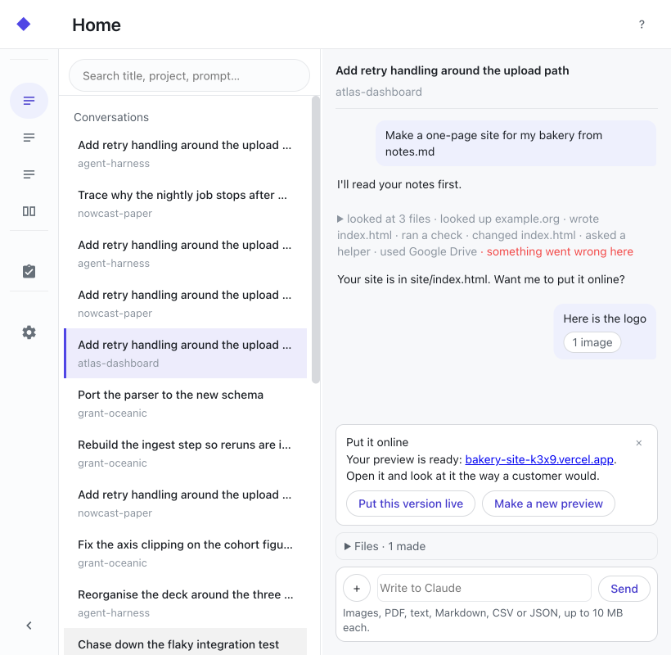
- Put it online appears once Claude has made files. It walks you through the free Vercel and GitHub accounts if you don't have them yet, then gives you a preview link. Only a second click makes that preview the live site.
Funding
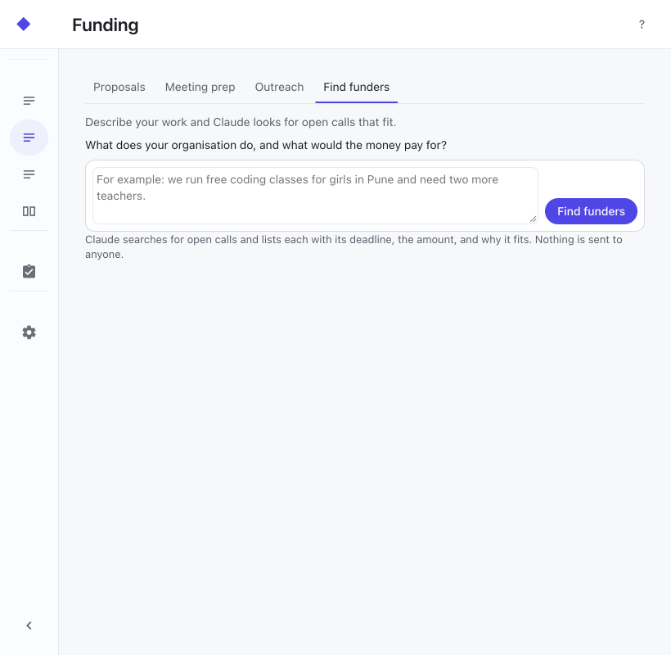
One place for money matters, in four sections. Proposals starts a proposal from the link to a funding call and tracks each application's deadline. This part arrives with the Funder Kit, which SimPPL adds to an install on request. Meeting prep shows who you're meeting next and what to ask. Outreach keeps the emails you plan to send as drafts you edit. Find funders is a box where you describe your work and Claude looks for open calls that fit.
Ship
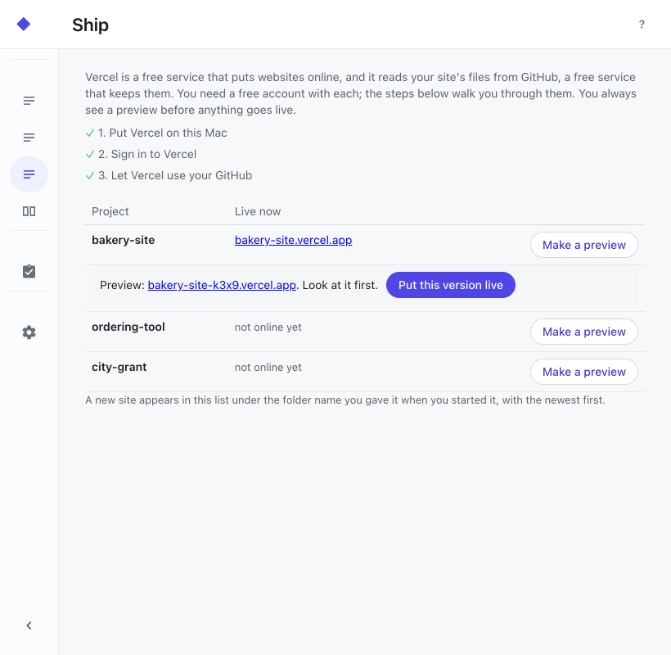
Ship puts a project online with Vercel. The three set-up steps come first, and only the current one has a button. Below them, Ship lists every project and the address where it is live now. Make a preview gives you a link that only the people you send it to will see, and Put this version live makes that exact preview the public site.
File Previews
File Previews shows what changed between two saved versions of a file in any project, side by side. Accept marks the version you're happy with. To go back to an older version, ask Claude in a conversation.
Call Notes
If you record your calls with the Call Notes plugin, the notes and the action items from each call appear here. Each item has a button to start Claude on it, and another to draft the follow-up email.
Setup
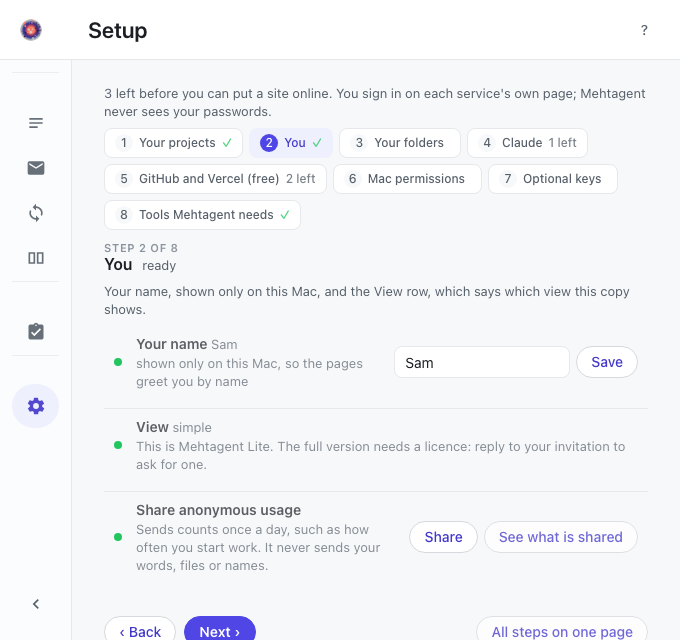
Setup has nine short steps, listed down the left. Each says ✓, To do (a site needs it) or Optional, and the line under the title names the steps a site still needs; your choices save as you go.
- Your projects: the one folder where everything you make goes.
- You: your name, and the View row, which says that Lite shows the simple view and how to ask for the full version.
- Other folders: where your proposals live, if you already keep them in a folder.
- Your AI: Lite works with Claude, Codex, Gemini and hundreds of other models, and one is enough. Sign in to Claude, which needs no key, or press Use another AI.
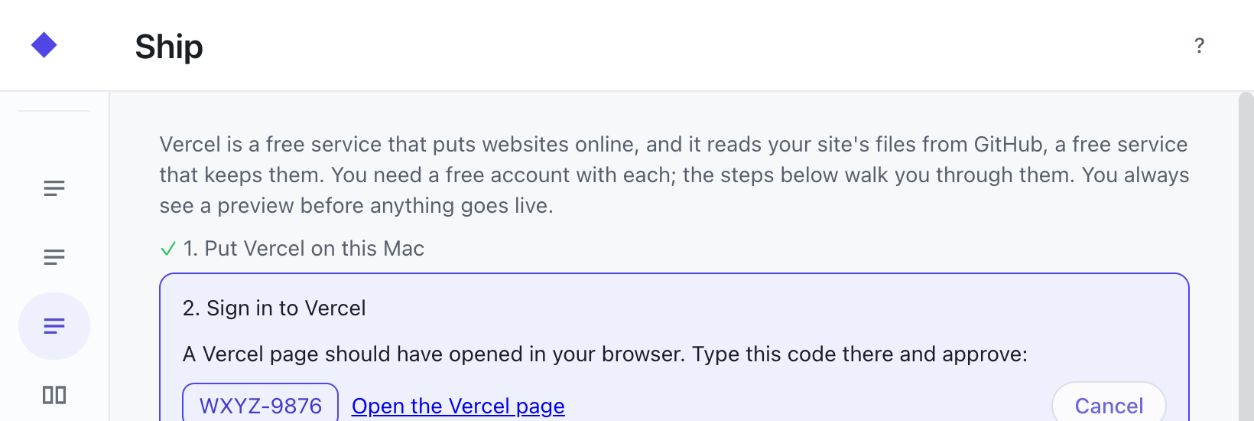
- GitHub and Vercel (free): the two free accounts Ship uses, each signed in on its own page. Lite shows a short code like the one below, and you type it on the page that opens and approve.
- Mac permissions: Calendar and Microphone, for Call Notes.
- Keys and agents: you can skip this step when you use Claude. A key you add, for example a team OpenRouter key someone sent you, stays on this Mac. Press Save and test and the row says Works or Refused; afterwards it shows only the key's last four characters. The same step lists the agents on this Mac and any key written into one of your projects, with the button that fixes it.
- Privacy: who sees what you type and the files you give the agent, and what SimPPL sees. Ask before files leave this Mac is on unless you turn it off, and you can stop sharing with SimPPL here.
- Tools Mehtagent needs: three small helpers installed with one click each, once Homebrew is on the Mac.